|
<< Click to display Table of content >> Licence server |
  
|
|
<< Click to display Table of content >> Licence server |
|
The Licence Server is a server that distributes licenses to multiple clients. This allows you to share one or more licenses between multiple machines on a network via intranet or even internet. Thus, the client queries the server, the service provider takes stock of licenses in use. If one or more licenses are available, the connection of the client to the server occurs, and then MithraSIG has a license to operate.
The licence server can be installed on a physical machine or virtual machine, which is connected to the physical key (dongle).
Administrator rights may be required to install these components. Restart the machine may be required.
Install server licence
To install the Server licence, you need the licence files. Geomod provides it on request.
•Choose the host machine to install the Server licence. It must be a machine that will be accessible to all machines that require a network licence.
•Copy the folder SisServerLicense and its subfolders on the server. It can be in the folder "C:\Program Files" for example. But the folder SisServerLicense must not be moved to another place after installation.
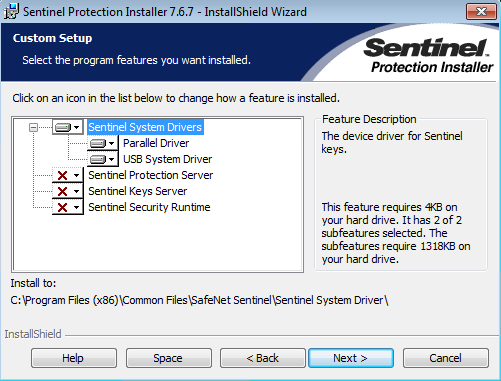
•Install Sentinel Protection by running the program Sentinel Protection Installer X.X.X located in the folder SisServerLicense:
oThe installation program starts. Choose the Custom installation, then only select Sentinel System Drivers (disable the last 3 options).
•Connect the USB dongle to the server.
•Then, move to the folder SisServerLicense\Network Licence Server and execute the program loadls.exe, the following interface appears:
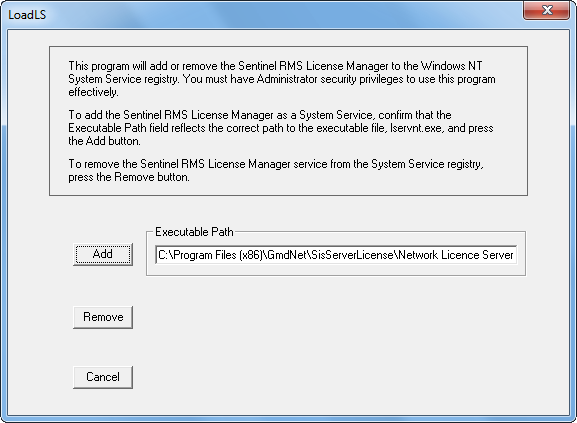
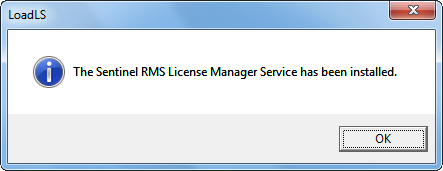
oCheck the path in the interface (it must be the one where is located the file loadls.exe) and click on the button Add. The following message is displayed:
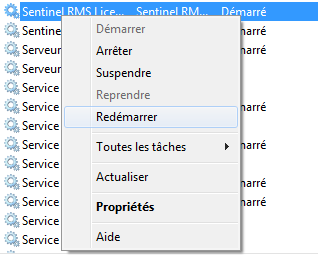
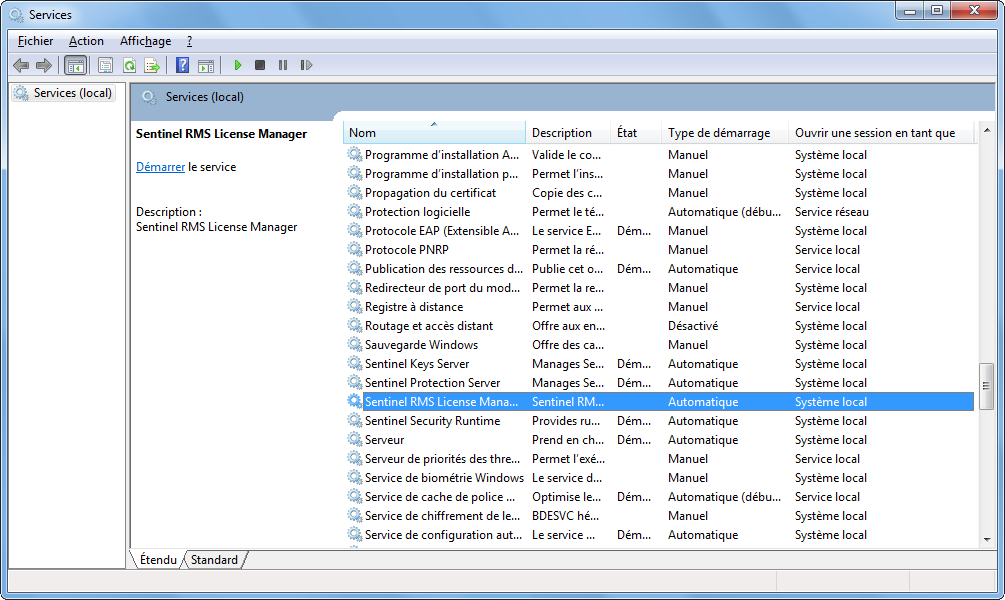
•The service is specified as Started in the list of Windows services:
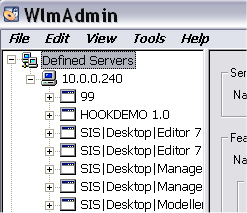
•Run the program wlmadmin.exe in the folder SisServerLicense\optional administration tools.
oExpand the server list.
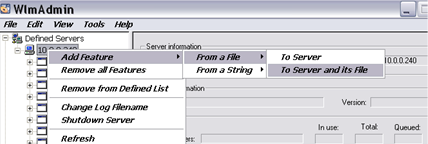
oRight-click on the server where the licence will be intalled. Select the option Add Feature/From a File/To Server and its File.
oIn the Windows explorer, select the licence file (example Cadcorp.lservrc) and validate.
Tips:
•Create a shortcut on the desktop for the program WlmAdmin.exe located in the folder SisServerLicense\Optional Administration Tools to administrate the Server licence.
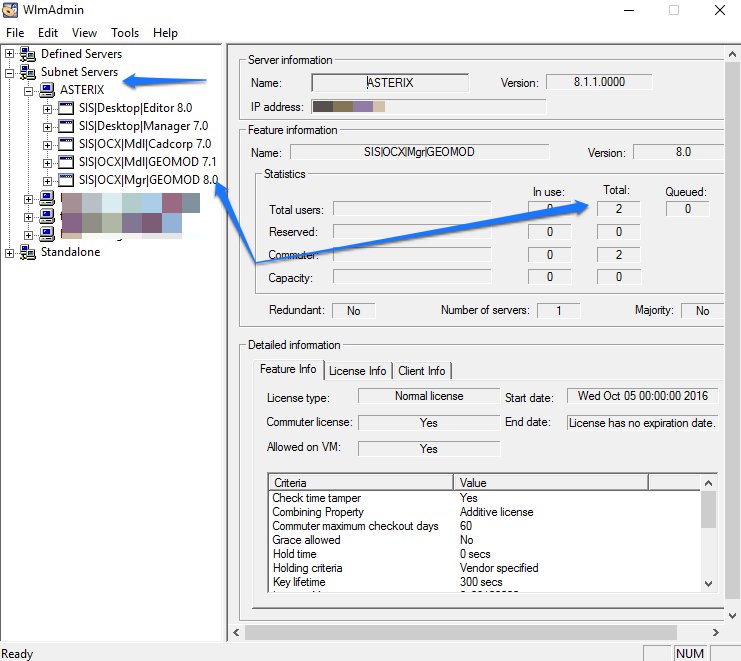
•To verify the available licences and know who use them, deploy the menu Subnet Servers, the server distributing the licences appears. Deploy the server by clicking ton the +, the licences available appear. Click on a licence to have information on it.
Update the licence file on the server
It is possible to have to update the licence file on the server. To do this, do as follow:
•In the Windows services list, stop the service Sentinel RMS License Manager.
•Run the program wlmadmin.exe in the folder SisServerLicense\optional administration tools.
oExpand the server list.
oRight-click on the server where the licence is intalled. Select the option Add Feature/From a File/To Server and its File.
oIn the Windows explorer, select the new licence file (example Cadcorp.lservrc) and validate.
•Restart the service Sentinel RMS License Manager from the Windows services list.